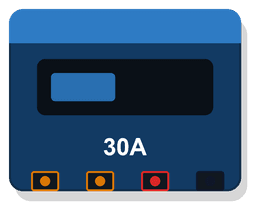
The Victron SmartSolar MPPT is the most popular solar charge controller in the campervan community, and for good reason. It offers excellent efficiency, Bluetooth monitoring, and seamless integration with other Victron components. This guide walks you through the complete setup process, from unboxing to optimised charge settings.
This guide is part of our campervan solar setup guide. If you are still deciding between controller types, see MPPT vs PWM charge controllers first.
Need to size your charge controller?
Our free calculator tells you exactly which Victron SmartSolar model fits your panel configuration and battery setup. Takes two minutes.
Choosing the Right SmartSolar Model
Victron's SmartSolar range uses a two-number naming convention: maximum input voltage / maximum output current.
| Model | Max Solar Input | Max Charge Current | Max Solar (12V) | Price |
|---|---|---|---|---|
| 75/15 | 75V | 15A | 220W | £80–£100 |
| 100/20 | 100V | 20A | 290W | £100–£130 |
| 100/30 | 100V | 30A | 440W | £120–£160 |
| 100/50 | 100V | 50A | 700W | £200–£260 |
| 150/35 | 150V | 35A | 500W | £180–£240 |
| 150/60 | 150V | 60A | 860W | £320–£400 |
The 100/30 is the most popular for campervans. It handles up to 440W of solar at 12V, which covers the vast majority of builds. For help sizing your controller, see solar charge controller sizing.
Always check Voc in cold weather
The maximum input voltage must accommodate your panels' Voc (open circuit voltage) at the lowest expected temperature. In a UK winter, Voc can be 10–15% higher than the datasheet value at 25°C. The Victron MPPT calculator on their website handles this calculation.
What You Need
Components
- Victron SmartSolar MPPT controller
- Solar panels (already mounted on roof)
- MC4 connectors or MC4 to bare wire adapters
- Battery cables (sized for the controller's max output current)
- Inline fuse for battery cable (sized to protect the cable)
- Cable glands (if running solar cables through the roof)
- Ring terminals or ferrules for cable ends
Tools
- Wire strippers
- Crimping tool (for ring terminals and ferrules)
- Multimeter
- Screwdriver (for terminal screws)
- Heat shrink tubing and heat gun
Wiring Diagram
The wiring order is critical. The SmartSolar has three pairs of terminals:
- Battery terminals (left): Connect to your battery via a fuse
- Solar panel terminals (centre): Connect to your solar array
- Load terminals (right, on smaller models): Optional direct load output
Solar Panels → MC4 → Cable Gland → MPPT Solar Input
                                        ↓
Battery ← Fuse ← Battery Cable ← MPPT Battery Output
For cable routing best practices, see how to route solar cables through your van roof.
Step-by-Step Installation
Step 1: Mount the Controller
Mount the SmartSolar vertically with at least 100mm clearance above and below for heat dissipation. Common mounting locations:
- Inside a wardrobe or cupboard near the battery
- On a panel behind a seat
- In a dedicated electrical bay
Avoid mounting it in direct sunlight, above heat sources, or in enclosed spaces with no ventilation. The controller generates heat, especially at high output.
Step 2: Connect the Battery FIRST
Always connect the battery before the solar panels. This is critical — the controller needs battery voltage to initialise and set its charging parameters.
- Run appropriately sized cable from the controller's battery terminals to your battery bus bar or battery terminals
- Install an inline fuse on the positive cable, within 300mm of the battery
- Connect negative first, then positive
- The controller LED should light up briefly to confirm battery detection
Fuse sizing for the battery cable:
| Controller | Max Output | Recommended Fuse | Cable Size |
|---|---|---|---|
| 75/15 | 15A | 20A | 2.5mm² |
| 100/20 | 20A | 25A | 4mm² |
| 100/30 | 30A | 40A | 6mm² |
| 100/50 | 50A | 60A | 10mm² |
| 150/35 | 35A | 40A | 6mm² |
| 150/60 | 60A | 80A | 16mm² |
Step 3: Connect the Solar Panels
With the battery connected, now connect your solar panels:
- Check panel voltage with a multimeter before connecting (you should read the Voc value)
- Connect the solar cables to the MPPT solar input terminals
- Connect negative first, then positive
- The controller should immediately begin tracking and charging
Connection order matters
Always connect the battery before the solar panels, and disconnect the solar panels before the battery. Connecting panels to an un-initialised controller can damage it or cause incorrect charging behaviour.
Step 4: Download the VictronConnect App
The VictronConnect app is available for iOS, Android, Windows, and macOS. It connects to your SmartSolar via Bluetooth.
- Download VictronConnect from your app store
- Open the app and allow Bluetooth access
- Your SmartSolar should appear in the device list
- Tap to connect (default PIN is 000000)
Step 5: Configure Battery Settings
This is the most important configuration step. The default settings are for lead-acid batteries — if you have LiFePO4 (lithium), you must change these.
LiFePO4 Recommended Settings:
| Parameter | Setting |
|---|---|
| Battery preset | User defined |
| Absorption voltage | 14.2V (check your BMS spec) |
| Float voltage | 13.5V |
| Equalisation | Disabled |
| Temperature compensation | Disabled (0 mV/°C) |
| Low temperature cut-off | Enable if your BMS does not handle this |
| Absorption time | Fixed, 1 hour |
| Tail current | 2A |
Lead-Acid / AGM Settings:
| Parameter | Setting |
|---|---|
| Battery preset | AGM spiral cell or Gel (match your battery type) |
| Absorption voltage | 14.4V (AGM) or 14.1V (Gel) |
| Float voltage | 13.8V (AGM) or 13.5V (Gel) |
| Equalisation | Disabled for AGM, optional for flooded |
| Temperature compensation | -16 mV/°C |
Check your battery manufacturer's specifications
Different LiFePO4 batteries have slightly different recommended charge voltages. Check your battery's datasheet — some prefer 14.4V absorption, others 14.0V. Getting this right maximises battery life.
Step 6: Configure Additional Settings
Bluetooth PIN: Change the default PIN (000000) to something secure. Anyone within Bluetooth range can connect with the default PIN.
Load output (smaller models): If you want to use the load output for small 12V devices, enable it and set the low-voltage disconnect to protect your battery (typically 11.5V for lead-acid, 10.5V for LiFePO4).
VE.Smart Networking: If you have a Victron SmartShunt or Smart Battery Sense, enable VE.Smart Networking to share battery voltage and temperature data. This dramatically improves charge accuracy.
Understanding the VictronConnect Display
The main screen shows:
- Battery voltage: Current battery voltage
- Battery current: Current flowing into the battery
- Solar power: Total watts being generated
- State: Current charge state (Bulk, Absorption, Float)
- Daily yield: Total energy harvested today
Charge States Explained
Bulk: The controller is pushing maximum available current into the battery. This is normal when the battery is below about 80% charge.
Absorption: The battery has reached the absorption voltage and the controller holds it there while current gradually decreases. This tops up the last 20%.
Float: The battery is fully charged. The controller maintains a lower voltage to keep it topped up without overcharging.
Monitoring and Troubleshooting
Daily Yield Expectations
In the UK, you should expect these approximate daily yields per 100W of solar:
| Season | Expected Yield per 100W |
|---|---|
| Summer (June–Aug) | 300–450 Wh |
| Spring/Autumn | 150–300 Wh |
| Winter (Dec–Feb) | 50–150 Wh |
If your yields are consistently below these ranges in clear conditions, investigate:
- Shading: Check for shadows from roof furniture, trees, or adjacent vehicles
- Dirty panels: Clean with water and a soft cloth
- Cable losses: Check all connections are tight and cables are correctly sized
- Temperature: Panels running very hot reduce output
Common Error Codes
| Error | Meaning | Solution |
|---|---|---|
| Error 2 | Battery voltage too high | Check battery connection and voltage |
| Error 17 | Controller overheated | Improve ventilation, reduce load |
| Error 18 | Controller overcurrent | Check for short circuits |
| Error 20 | Max bulk time exceeded | Check battery capacity and absorption settings |
| Error 26 | Terminal overheated | Check terminal connections, retorque |
| Error 33 | PV over-voltage | Panel Voc too high — check series wiring |
Firmware Updates
Victron regularly releases firmware updates. These can add features, improve algorithms, and fix bugs. Update through VictronConnect when prompted — the process takes about two minutes.
Integration with Other Victron Components
SmartShunt
The Victron SmartShunt monitors battery state of charge, current flow, and history. When paired with the SmartSolar via VE.Smart Networking, the charge controller receives accurate battery voltage and SOC data, improving charge accuracy.
Cerbo GX / GX Touch
For remote monitoring and more detailed data logging, add a Cerbo GX. This connects via VE.Direct cable and provides a local touchscreen display plus remote monitoring through Victron's VRM portal.
Victron Lynx Distributor
The Lynx Distributor provides fused DC distribution and integrates with the Victron ecosystem. See Victron Lynx Distributor setup for details.
Frequently Asked Questions
Can I connect two SmartSolar controllers to one battery bank?
Yes, this is a common setup for large systems or panels on different roof faces. Each controller operates independently. With VE.Smart Networking, they can share battery data for coordinated charging.
What happens when the battery is full?
The controller enters Float mode, reducing output to a trickle. The panels are effectively throttled — they produce only what is needed to maintain the battery. This is automatic and does not damage the panels.
Can I use the SmartSolar with non-Victron panels?
Absolutely. The SmartSolar works with any solar panel, regardless of brand. Just ensure the panel's Voc and total array wattage are within the controller's ratings.
Do I need an external temperature sensor?
For LiFePO4 batteries, an external temperature sensor is not strictly necessary (temperature compensation should be disabled). For lead-acid batteries, a Victron Smart Battery Sense provides temperature-compensated charging, which improves battery life.
How do I reset the SmartSolar to factory settings?
In VictronConnect, go to Settings, scroll to the bottom, and tap "Reset to defaults." This restores all settings to factory values. You will need to reconfigure your battery settings afterward.
Design your complete solar system
Our free calculator sizes your panels, charge controller, battery, and cables. Get a complete wiring diagram with all specifications.
Summary
The Victron SmartSolar MPPT is an excellent charge controller for campervans. The key installation steps are: mount with adequate ventilation, connect battery first, connect panels second, and configure battery settings to match your battery chemistry. With the VictronConnect app, you get full visibility of your solar system's performance from your phone.
Related
Keep the build moving
Make the next build decision easier.
Get practical diagrams, calculator updates and honest product comparisons in your inbox.
Roam Wired
Roam Wired turns campervan research into practical plans. We publish transparent guidance, a free electrical design tool and marketplace resources for UK and US van builders.
About our approach